Core Features
AutomationsPro
Run agent sessions on a schedule or when something happens in GitHub, Slack, Linear, Sentry, Notion, Microsoft Teams, or a webhook
Overview
Automations run an agent session against a project when something happens (a review is requested, an issue is filed, a message lands in a channel) or on a schedule, like a cron job. Either way the output is a live workspace you (or a teammate) can open, review, and continue interactively.
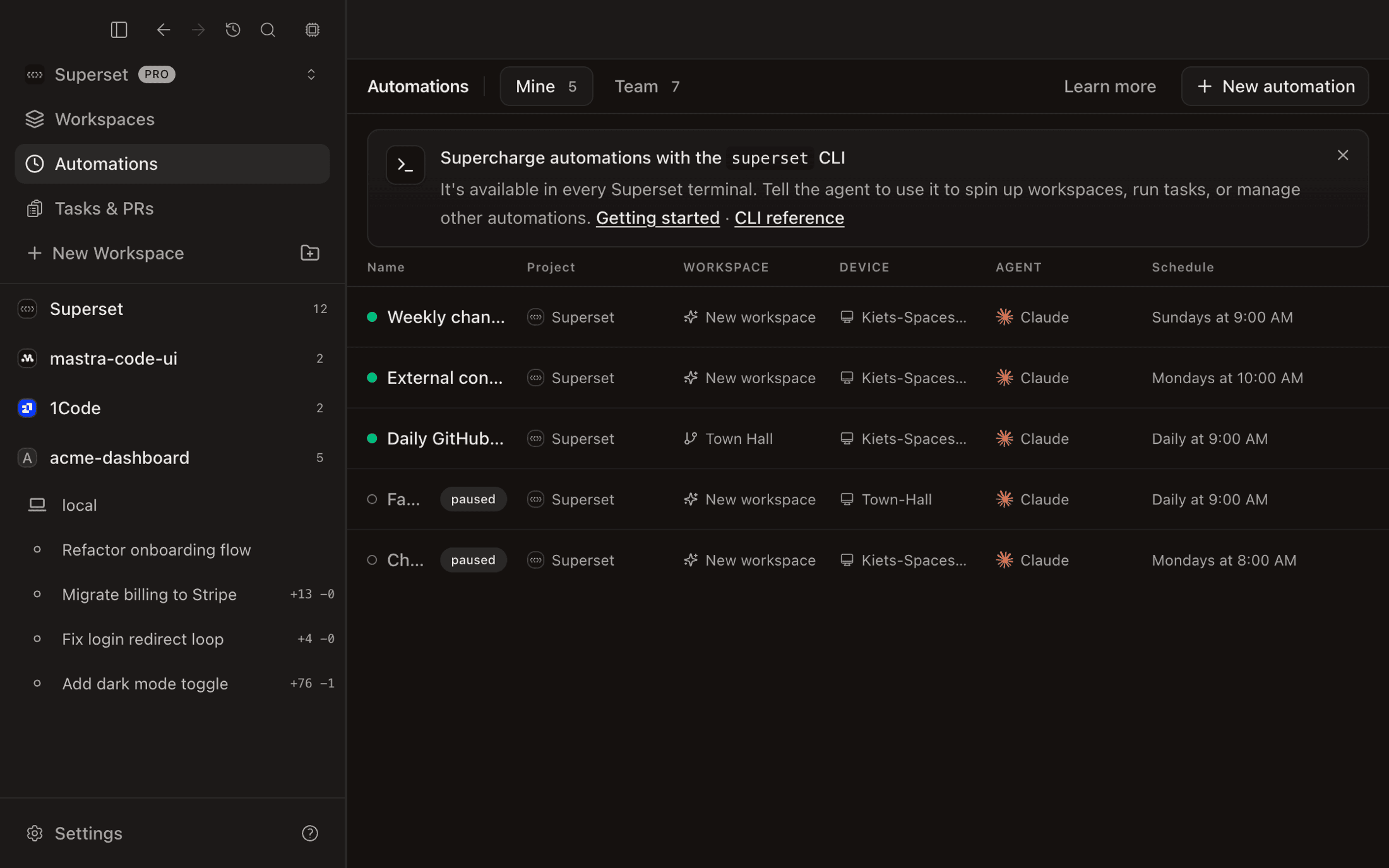
Typical uses:
- Standups: a nightly summary of PRs, issues, and activity
- Release notes: generate a draft from merged commits
- Audits: scan for security issues or deprecated APIs each morning
- Dependency sweeps: check for outdated packages weekly
- PR reviews: review a pull request as soon as you're requested as a reviewer
- Bug triage: reproduce a new Sentry issue or a report posted in #bugs
The list shows 7-day health stats (Active, Created, Failed), groups enabled automations by soonest run under Up next, and splits into Mine and Team tabs. Team automations are read-only; only the owner can edit, pause, run, or delete one.
Requirements
- A Pro plan: Automations are a Pro feature. Creating, running, and resuming an automation needs a Pro or Enterprise subscription on the organization, from the app, the CLI, or the SDK alike. An organization that downgrades keeps its automations and can still edit, pause, or delete them, but they stop firing until it upgrades again.
- A project, or session mode: automations usually run against a v2 project linked to a GitHub repo. Pick No project and each run creates a session workspace instead.
- A target device: The run fires on the device you pick when creating the automation.
- A connected integration, for event triggers: connect GitHub, Slack, Linear, Sentry, Notion, or Microsoft Teams from Integrations before you add one of its triggers. Microsoft Teams triggers need an Enterprise plan; every other trigger works on Pro.
Create an Automation
Click Automations → New automation and fill in:
- Title: how the automation appears in the list
- Prompt: the instructions the agent will receive at dispatch time. Supports markdown,
@file/pathmentions (scoped to the selected project),:emoji:shortcodes, and/slash commands. - Device: which host runs the session. Defaults to this device. Pick Cloud to run each session in a new cloud workspace at the machine size you choose, or in an existing cloud workspace.
- Project: the v2 project the session runs against, or No project for a session per run.
- Trigger: an event from a connected integration, a webhook, or a schedule. See Triggers.
- Agent: Claude, Codex, Amp, or anything else you've set up under Settings → Agents.
Triggers
Triggers decide when an automation runs. They live in the Triggers card on the automation's detail page: Add Trigger opens a searchable menu of providers and events, and each trigger reads as a sentence you fill in, like "Review requested from Me in acme/web by Anyone". One automation can have up to 25 triggers and can mix events and schedules. Edits are drafts until you press Save.
Event triggers
An event trigger starts a run when the event comes in, without waiting for a schedule. Pick the provider, the event, and the scope it watches:
| Provider | Events | Scope and filters |
|---|---|---|
| GitHub | Pull request opened, pushed, merged, closed, review requested, or assigned; draft opened; comment added; PR review comment; PR review submitted; review thread resolved or unresolved; issue comment; label change; checks completed; workflow run completed; new push to branch; release published, created, edited, unpublished, or deleted | One repository (required), branches, labels, comment text, and people (Anyone, Me, or specific people) |
| Slack | Message in channel, reaction added, channel created | Channels (required, except for channel created), message text or new channel name, emoji (required for reaction added), people |
| Linear | Issue created, status changed, or assigned; cycle ended | Teams (required), projects, labels, status, assignee |
| Sentry | Issue created, resolved, assigned, archived, or unresolved; any issue event | Projects (required), level (Fatal, Error, Warning, Info, Debug) |
| Notion | Rows changed, comment added, comment mentions user | Data sources (required), pages, people |
| Microsoft Teams | Message in channel, channel created | Team (required), channels (required for message in channel), message or channel name text, people |
Text filters are plain, case-insensitive "contains" matches against the first 4,096 characters, not regular expressions. Thread replies in Slack don't count as a message in channel.
GitHub triggers skip pull request events from forks (opened, pushed, reviews, review comments, threads), and a run never checks out a fork's branch. A top-level comment on a fork's pull request can still fire Comment added, and checks and workflow runs from fork pull requests still fire.
If the provider isn't connected, the trigger shows Requires connection with a Connect button; an expired connection shows Connection expired with a Reconnect button. A few providers need one extra step:
- Slack: the Paradev bot joins the public channels you pick when you save. For a private channel, invite @Paradev to it first.
- Notion: share the pages and data sources the automation should watch with the Paradev integration.
- Microsoft Teams: a tenant administrator grants consent once for the whole tenant.
- GitHub: a trigger that filters by Me needs your personal GitHub account connected, or it won't fire.
Webhook triggers
A webhook trigger runs the automation whenever something sends a POST to its URL, so any service that can call a URL can start a run.
- Add a Webhook triggered trigger and save.
- Click Generate token, then Copy URL with token (or Copy auth header). The token starts with
sset_wh_and is shown once. Regenerate token asks you to confirm, then replaces it, and the old token stops working immediately. - Send a JSON body to the URL, with the token as a bearer header or as a
?token=query parameter:
curl -X POST "https://api.superset.sh/api/automations/webhook/<automationId>" \
  -H "Authorization: Bearer sset_wh_..." \
  -H "Content-Type: application/json" \
  -d '{"service": "checkout", "status": "failed"}'
The body must be a JSON object or array of at most 1 MiB; an empty body counts as {}. Each token can make 300 requests per minute. Responses: 200 when the delivery is accepted (the reply's runs field says how many runs it started; 0 means none did, for example on a plan without automations), 400 if the automation is paused or the body isn't JSON, 401 for a missing or invalid token, 413 for a body that's too large, 429 past the rate limit. Every request is a new event: webhook triggers have no filters and no de-duplication.
What the agent receives
The agent gets your prompt with the event that started the run in front of it: the provider, the event type, its title, URL, and who did it, plus the event payload (capped at 24,000 characters). For a webhook it's the JSON body you sent. So a prompt like "Review this pull request and leave comments" knows which pull request to look at. When a pull request event runs in a project linked to that repository, the run's workspace checks out the pull request's branch, and reuses that pull request's workspace if one exists. If the device can't fetch the pull request, the run starts on a fresh branch.
Guides
- Review pull requests when your review is requested: GitHub Review requested
- Triage new Sentry issues: Sentry Issue created
- Fix bugs reported in Slack: Slack Message in channel
- Start a run with a webhook: Webhook triggered
Schedules
Schedules are stored as RFC 5545 RRules. The picker has presets for Hourly, Daily, and Weekly. Custom opens with a weekdays rule you can edit, for anything else. Times use your timezone at creation, and each schedule shows its next run inline. Custom rules are validated inline: invalid rules, rules with no upcoming runs, and one-shot rules (COUNT/UNTIL) are rejected before saving.
Examples:
FREQ=DAILY;BYHOUR=9;BYMINUTE=0: every day at 9:00 AMFREQ=WEEKLY;BYDAY=MO,TU,WE,TH,FR;BYHOUR=9;BYMINUTE=0: weekdays at 9:00 AMFREQ=WEEKLY;BYDAY=FR;BYHOUR=17;BYMINUTE=0: every Friday at 5:00 PM
Runs
Each time an automation fires, from an event or a schedule, a run is recorded. Runs show up on the automation detail page's Run History tab with a status:
- created: the workspace was created on the target device (a run's success state)
- creating: the handoff is in flight
- missed: no device was online to take the run. It isn't retried
- failed: the handoff broke. The error shows inline under the run, selectable for copying
The schedule advances to the next occurrence either way.
When a run dispatches in "new workspace" mode, a fresh workspace is created from the project's repo for that run (or a fresh session workspace when the automation has no project). Open it from the run row to see the agent's work.
Pause, Run Now, Delete
From the automation's detail page (Settings tab):
- Pause: flip the Active switch. Runs are kept, and each schedule row on a paused automation still shows when it would next run, so schedule edits are previewable.
- Run now: dispatches immediately. The run appears under Run History within seconds.
- Delete: in the ⋯ overflow menu; removes the automation and its run history.
Retry Failed Runs
On the Mine tab, Retry all appears in the header when any of your automations' latest run failed, and re-dispatches all of them. The Failed stat card filters to failing automations. Hover a row you own for Run now to re-dispatch one.
Limits
- At-least-once delivery: Automations may dispatch more than once in rare cases (e.g. dispatcher retries). Design prompts that are safe to re-run.
- No agent-outcome tracking: a successful run means its workspace was created; the detail page doesn't show whether the agent's work succeeded. Open the workspace to see what happened.
- Offline hosts miss the run: if the target device is offline when the automation fires, the run is recorded as missed and the next occurrence or event is handled normally. Keep the target device online for automations that should catch every event.
- Watch for loops: an agent's own activity can match its trigger, for example a review comment on a PR that a "Comment added" trigger watches. Narrow the trigger with its people filter (for example, comments by specific teammates) so the agent's own activity doesn't start new runs. Slack triggers already ignore the Paradev bot's own messages and reactions.
- One prompt per automation: Each automation has one prompt (though it can have up to 25 triggers). To run different prompts, create multiple automations.
CLI
superset automations list
superset automations create --name "Nightly audit" --rrule "FREQ=DAILY;BYHOUR=3;BYMINUTE=0" --project <projectId> --prompt-file prompt.md --agent claude

# Omit --project and --workspace for session mode (a session workspace per run)
superset automations create --name "Scratch triage" --rrule "FREQ=DAILY;BYHOUR=8;BYMINUTE=0" --prompt "…"

# Each run's workspace carries the automation's tags and groups into the matching
# sidebar folders. Default tag: "automation" — runs collect in an "automation"
# folder per project. --tag (repeatable) files them elsewhere; clearing the tags
# in the editor opts out of grouping.
superset automations create --name "Nightly audit" --rrule "FREQ=DAILY;BYHOUR=3;BYMINUTE=0" --project <projectId> --prompt "…" --tag audits

# Event triggers: pass the trigger set as a JSON array with --triggers or --triggers-file.
# trigger-options lists the ids a provider's filters accept (channels, repos, teams, ...).
superset automations trigger-options --group slack
superset automations create --name "Triage #bugs" --project <projectId> --prompt-file triage.md \
  --triggers '[{"config":{"kind":"slack","event":"reaction_added","channels":{"mode":"list","ids":["C123"]},"emoji":{"mode":"list","ids":["bug"]},"actor":{"mode":"any"}}}]'

# update --triggers replaces the whole set: include each existing trigger's id to keep it.

superset automations update <id> --session   # switch an existing automation to session mode
superset automations get <id>
superset automations run <id>
superset automations pause <id>
superset automations resume <id>
superset automations delete <id>