Core Features
Editor & Files
File explorer, built-in editor, and cross-workspace search
Each workspace has a file tree, a built-in editor, and search across workspaces.
File Explorer
Browse and manage your workspace's files from the sidebar:
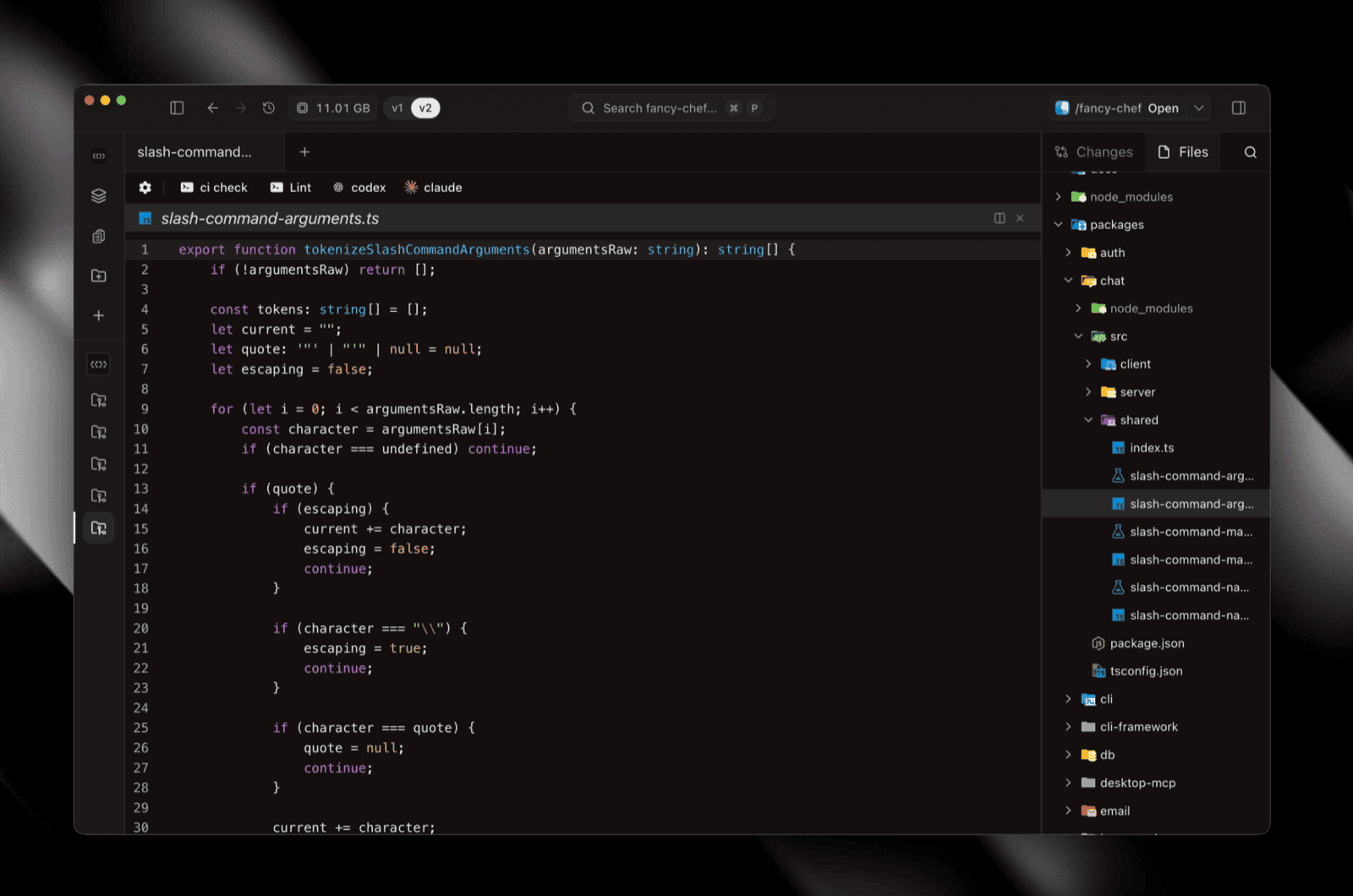
- Hierarchical tree with git decorations showing changed files
- Create, rename, delete, move, and copy files with context menus
- Rename inline, and drag files or folders to move them. Open editors, including ones with unsaved edits, follow the new path
- Toggle hidden files; refresh directory listings
- Search files with instant results
- Material icon theme for at-a-glance file types
Built-in Editor
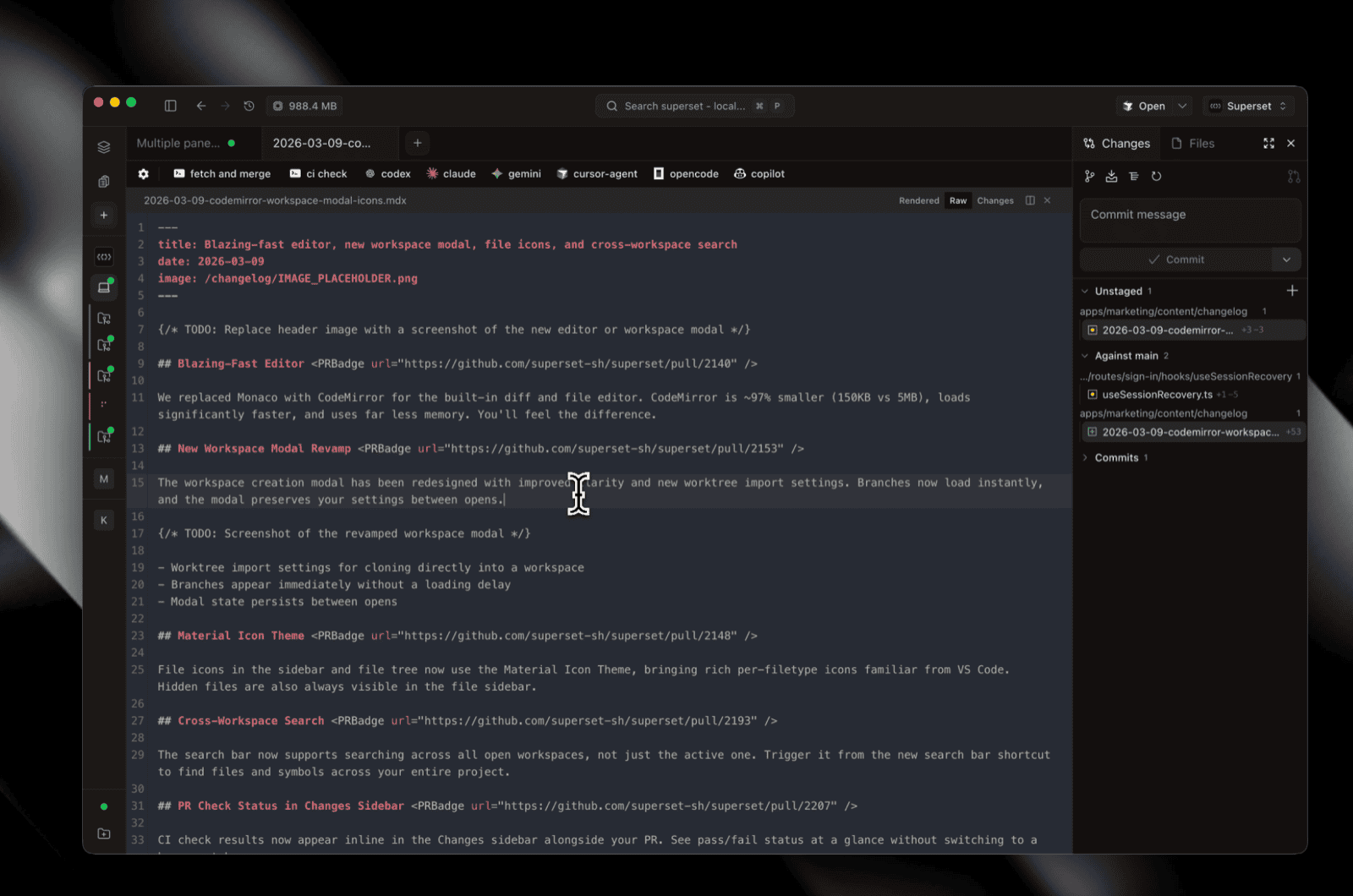
Ways in:
- Click any file in the explorer
- From a diff: double-click a line or right-click → Edit Here to jump to that exact spot in the raw file (see Diff Viewer)
The editor also opens files outside the workspace, including files reached through a symlink, and saves your edits to them. Creating, deleting, moving, and copying files stay inside the workspace.
For longer editing sessions, ⌘O opens the workspace in your IDE (IDE Integration).
Save and Review External Changes
Use Save or ⌘S to write your edits. If an agent or script changes the file while you have unsaved edits, the editor keeps your buffer and shows an external-change banner. Click Compare to review the disk and local versions side by side. Saving a conflicted file opens the same review.
- Keep editing preserves your unsaved edits without writing to disk.
- Reload from disk replaces your buffer with the disk version. It is unavailable if the file cannot be read.
- Overwrite file replaces the disk version with your edits.
The editor does not merge simultaneous edits.
Auto Save
Auto Save is off by default. Set it in Settings → Files & Editor → Editing → Auto Save:
- After delay (3s): saves 3 seconds after you stop typing
- On focus change: saves when you leave the file's pane or the Paradev window
- On window change: saves when the Paradev window loses focus
Auto Save applies to files you edit by hand, including files in editors that are not active. It pauses for a file with a save conflict or a failed save until you resolve it.
Markdown Links
Web links in Markdown previews follow Settings → Browser → URL links, and links to Paradev Pages follow Settings → Files & Editor → Page links. By default, Shift-click opens a new tab, Cmd/Ctrl-click opens a split browser pane, and Cmd/Ctrl+Shift-click opens the system browser. A plain click keeps you editing.
⌘C in a rendered Markdown view copies the text as you see it, without backticks or fences. To copy the Markdown source, right-click the selection and choose Copy as Markdown.
Cross-Workspace Search
The search bar searches across all open workspaces.
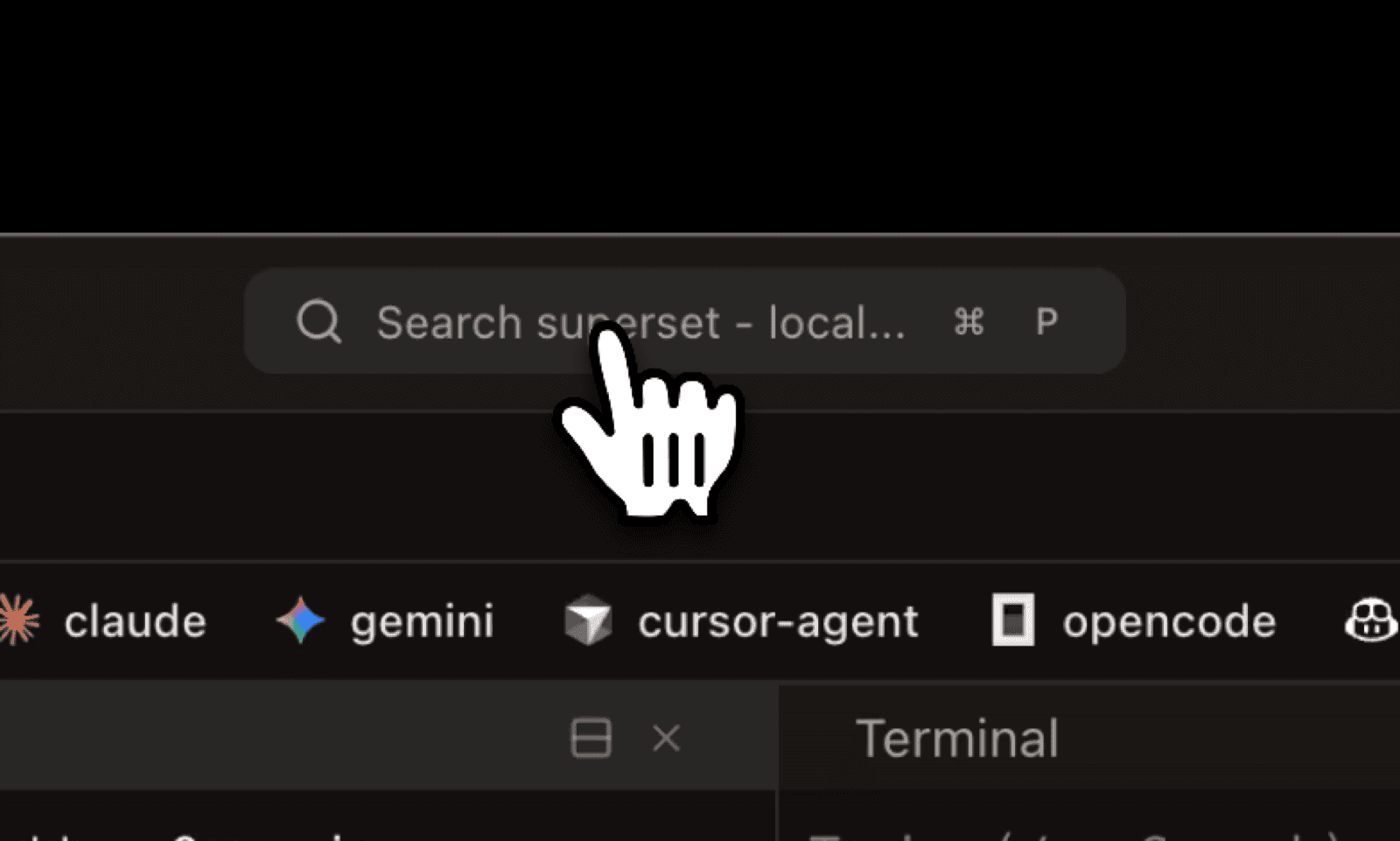
Image Viewer
Images open fitted to the pane, with standard viewer navigation:
- Zoom: pinch, or Ctrl/⌘ + scroll (anchored at the cursor, 25%–1600%)
- Pan: two-finger scroll, or click and drag
- Keyboard: +/− to zoom, arrow keys to pan, 0 to reset
- Reset: double-click, or click the zoom badge that appears while zoomed
Tabs, Splits, and Panes
Drop a pane onto the tab strip to create a new tab; mix terminals, files, diffs, and browser panes in one layout. The browser pane keeps its state when you switch workspaces.
If one pane fails to render, it shows This pane hit an error with Retry and Close pane. The rest of the workspace keeps working. Close pane also removes the pane from the saved layout, so it does not come back after a reload.