Core Features
Terminal
Built-in terminal with multiple tabs and persistence
Overview
Built-in terminal per workspace with multiple tabs and session persistence.
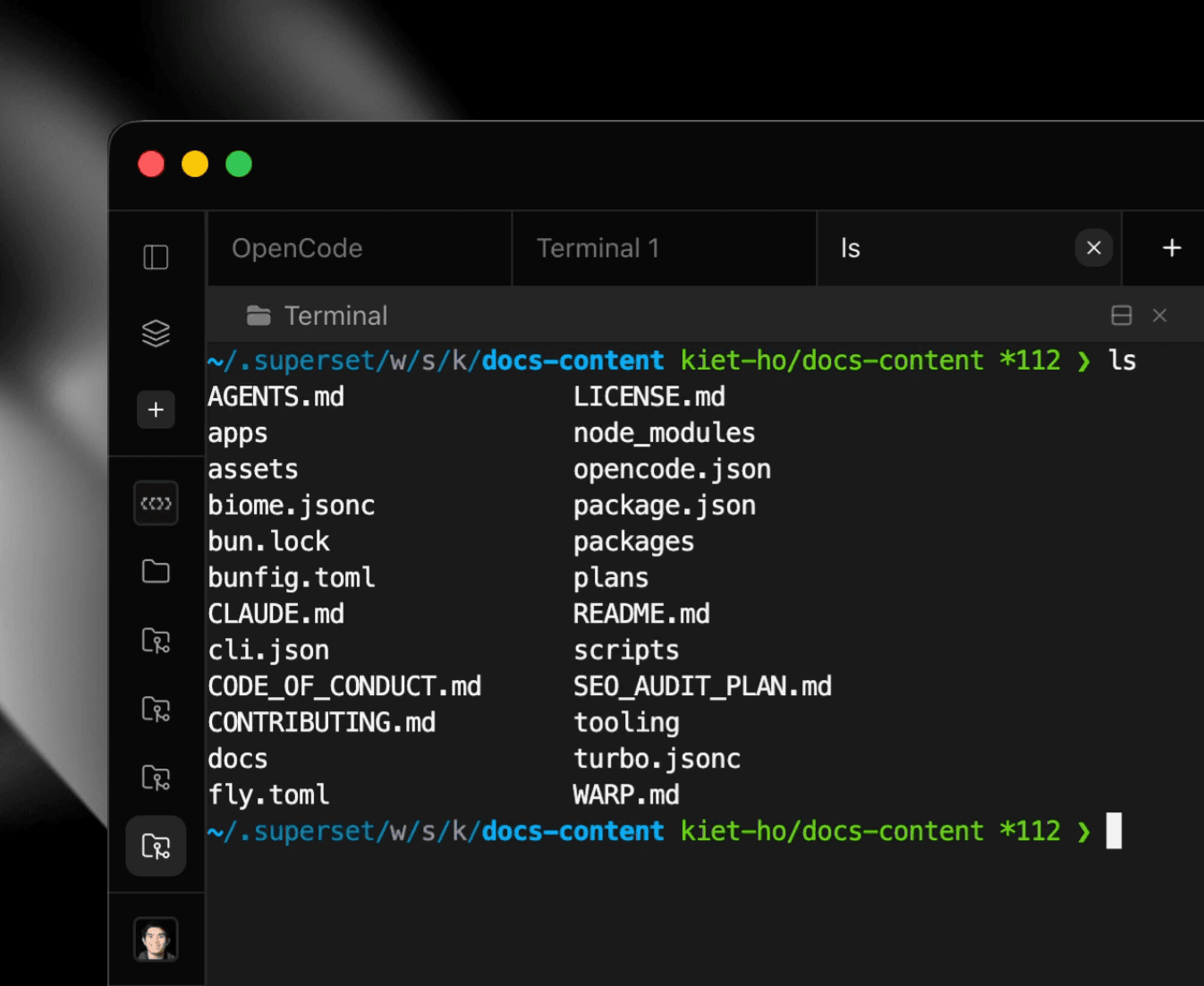
Multiple Tabs
Open several terminal tabs per workspace. Each runs independently.
- ⌘T - New tab
- ⌘W - Close pane; ⌘⇧W - Close tab
- ⌘⌥1-9 - Switch tabs (⌘1-9 switches workspaces)
Session Persistence
Sessions survive app restarts:
- Running processes continue
- Output history preserved
- Scrollback maintained
If a terminal has ended, choose New shell to start a fresh session in the same pane. Recent output from the previous session stays visible. For agent recovery, see Resume Interrupted Sessions.
Pane Rename
Double-click a pane title to rename it.
Merge Tabs
Drag a tab onto another tab's split drop zone to merge the source tab's panes into that layout. The source tab closes after the merge.
Close Warning
Closing a terminal with a running process asks you to confirm. If you tick Don't ask again, turn the warning back on with Warn before closing a running terminal in Settings → Terminal.
Right-Click Menu
Right-click in the terminal for quick actions:
- Copy - Copy selected text (enabled when text is selected)
- Paste - Paste from clipboard (enabled when clipboard has content)
- Mark as Unread - Show the unread indicator again
- Split, Clear, Move to Tab, Close
Copying follows Ghostty's whitespace rules: trailing spaces on each line and trailing blank lines are removed, indentation and blank lines between text are kept, and lines that wrapped only because of the pane width are joined back into one line. The same rules apply to ⌘C, copy on select, and rectangular selections.
Copy From Agents
Agents such as Codex and Claude Code capture the mouse, so a drag selects text inside the agent instead of the terminal:
- Drag, then ⌘C - copies what the agent highlighted. Most agents also copy as soon as you release the mouse.
- Option-drag, then ⌘C - makes a normal terminal selection over the agent, using Paradev's whitespace rules.
On macOS, Ctrl+C stops the running program. It does not copy.
Cmd/Ctrl-Click Links
Hold Cmd (macOS) or Ctrl and click links in terminal output:
- URLs open in browser
- File paths open in the built-in file viewer by default. A location such as
src/index.ts:240:7jumps to line 240, column 7. - Links to Paradev Pages open in a Page pane when the click opens them in the app
- Configure modifier keys for URLs in Settings → Browser → URL links, and for file, folder, and page links in Settings → Files & Editor
Environment Variables
| Variable | Description |
|---|---|
SUPERSET_ROOT_PATH | Path to root repository |
SUPERSET_WORKSPACE_NAME | Current workspace name |